Help · Add the chat to your site
Add the chat to Joomla
Updated
The chat widget is one line of code. Here's where it goes on a Joomla site, so the chat button appears in the corner of every page.
For more detail, other options and cookie consent, see our guide How to add a custom AI chatbot to your Joomla website.
1. Copy the code
Open your project and go to Settings. Under Widget integration code, choose Copy snippet. Use the code from your own dashboard: it contains your project's ID.
<script src="https://…/pixe-widget.js" data-project-id="…" data-api="…" async></script>
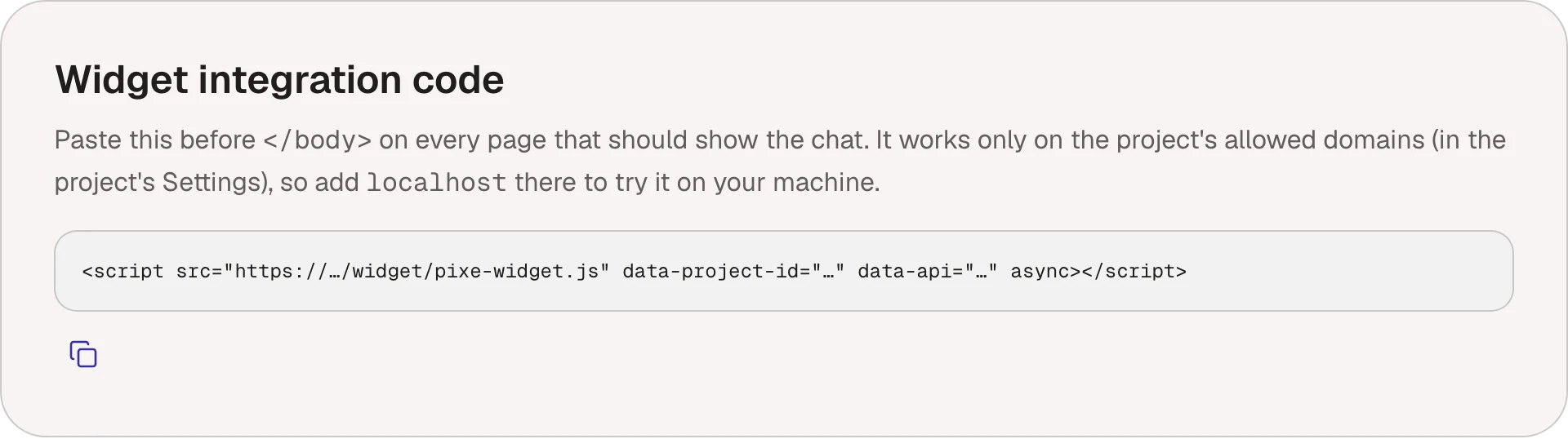
2. Paste it into Joomla
With a Custom module:
- Joomla's editor removes
<script>tags, so first set your own editor to Editor - None (user menu, Edit Account → Basic Settings). - Go to Content → Site Modules → New → Custom, title it "Pixe chat" and set Show Title to Hide.
- Paste the code into the content box.
- Pick a Position on every page, such as footer in Cassiopeia, and on Menu Assignment choose On all pages.
- Save.
With your template: many templates (Helix, Astroid, T4, Gantry) have a Custom Code setting in System → Site Template Styles with a "before </body>" box. Paste the code there instead.
3. Check your domains
The widget only runs on your project's allowed domains, in Settings. Add a staging address too if you want the chat there.
The chat button doesn't appear
- Open the module again: if the code is gone, the editor removed it. Use Editor - None.
- Check the module is published, its access is Public and its position exists in your template.
- Clear Joomla's cache (System → Clear Cache).
- Check the page's domain is one of the project's allowed domains in Settings.
- Check the widget isn't turned off in Chat → Widget.
- Open the browser's console (right-click, Inspect, Console): the chat leaves a short message there when it doesn't load.